
Skip to content

Product Management

The Product Management feature allows sellers to:

  • Add new products
  • Update existing listings
  • Remove outdated products
  • Activate or deactivate products
  • Fix violated or flagged items

This flexibility ensures your shop always offers updated and compliant items .
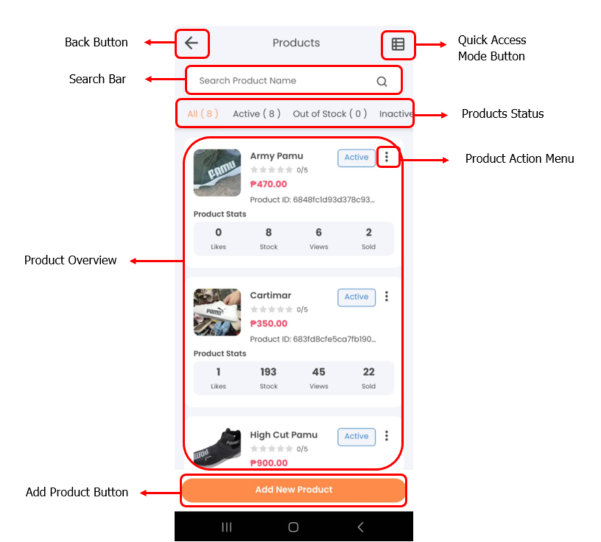
Carteja Mobile Product Card
    • Tap Products from the Shortcuts section.
    • Input your Admin PIN to continue.
    • Tap “Add a Product” and complete all required details.
    • Tap Publish to make the product live.

    • Tap Products from the Shortcuts section.
    • Input your Admin PIN to continue.
    • Tap the Product Menu Actions (three dots icon) and select Edit.
    • Modify the product details as needed.
    • Tap Confirm to save updates.

    • Tap Products from the Shortcuts section.
    • Input your Admin PIN to continue.
    • Tap the Product Menu Actions (three dots icon) and select Delete.
    • Tap Yes to permanently remove the product.

    • Tap Products from the Shortcuts section.
    • Input your Admin PIN to continue.
    • Tap the Product Menu Actions (three dots icon).
    • Select Activate or Deactivate depending on the current status.
    • Tap Yes to apply the change.

Common Issues

  • Product image fails to upload
  • Changes to product details do not save
  • Error when trying to delete a product
  • Product status (activate/deactivate) not updating

Troubleshooting Guide →