
Skip to content

Product Management

The Product Management section allows sellers to:

  • Add new products
  • Update existing listings
  • Remove unwanted or outdated products
  • Activate or deactivate products
  • Fix violated or flagged items

Access this feature by clicking “Product Management” in the left sidebar of your Carteja ShopHub dashboard.
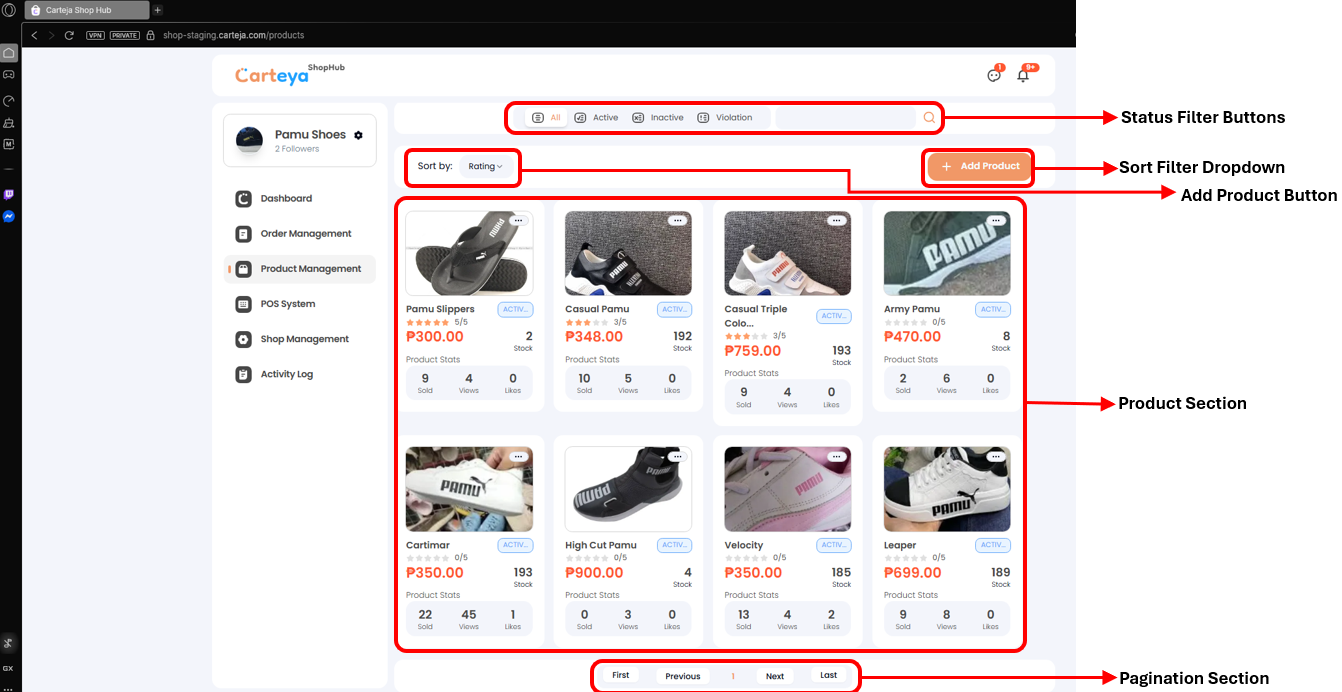
Carteja Web Product Card
    • Click the Product Management link from the shop navigation menu.
    • Click the “Add Product” button in the top-right corner.
    • Select a clear, high-quality image of the product.
    • Add a product name, category, and a detailed description.
    • Provide the weight (kg), width (cm), length (cm), and height (cm).
    • Add the selling price, cost price, and available stock quantity.
    • Set the status to List or Unlist.

    • Scroll horizontally in the product table to find the expand/edit icon.
    • Click the edit icon and update any necessary information:
      • Change prices
      • Update descriptions
      • Modify stock quantities
      • Replace images
      • Adjust categories
    • Click Save to update the product details.

    • Scroll horizontally in the product table to find the delete icon.
    • Click the delete icon for the product you want to remove.
    • Confirm when prompted.

Products marked as Active are visible to customers and available for purchase.
Ensure that:

  • Product details are complete
  • Sufficient stock is available

Use the Inactive status for products that are temporarily unavailable.
This is useful for:

  • Seasonal items
  • Products awaiting restock

Products marked as Violation have broken platform policies.
To fix this:

  • Review the reason for violation
  • Correct any issues (e.g., pricing errors, prohibited items, inappropriate content)
  • Resubmit for approval

Common Issues

  • Product image fails to upload
  • Changes to product details do not save
  • Error when deleting a product
  • Product status not updating correctly

Troubleshooting Guide →